
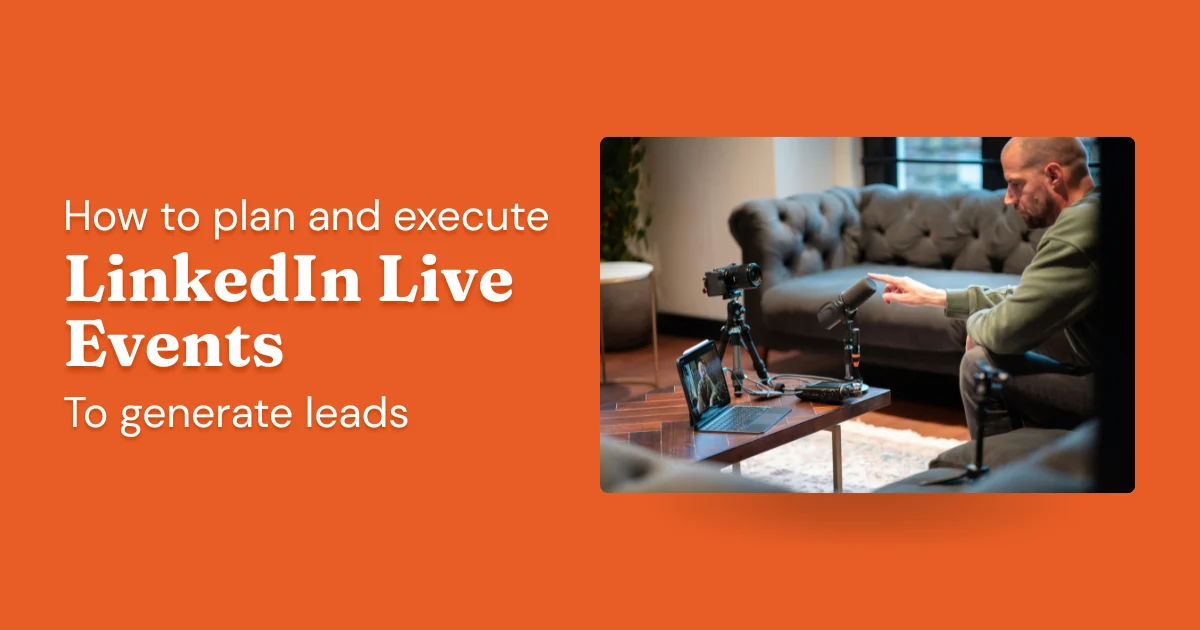
LinkedIn Live is a valuable tool, but a very different beast from normal LinkedIn posting and commenting. Live is engaging, preferred by some but dispreferred by others, and allows you to show your face and personality and meet people in a different way than you normally would.
Usually, I suggest incorporating LinkedIn Live if either (1) you're invited to be a guest on someone else's show, (2) you have high-profile guests wanting to join you on one, or (3) you have some other way of using your own audience strength to fill the show with attendees. In other words, if your page is empty, running a LinkedIn Live won't help very much.
- LinkedIn Live is open to any account with 150+ followers, good standing, and at least 30 days of account history. No application needed.
- You need a third-party streaming tool. StreamYard is the easiest starting point for most users.
- Live sessions should run at least 15 minutes so LinkedIn has time to notify your followers.
- Promote the session in advance: LinkedIn Live rewards prepared broadcasters, not spontaneous ones.
- After each session, repurpose the recording into clips, posts, or articles to extend its reach.
What Is LinkedIn Live?
LinkedIn Live is the equivalent of streaming on Twitch or Youtube, and it started to get a lot more traction during the COVID-19 pandemic, though it was pushed to beta in 2019. You don't publish a video, you live stream at a particular time that you set in advance, usually by creating a LinkedIn Event and then hooking it up to Streamyard or a similar tool. These are public live sessions where you can host panels, AMAs, webinars, launches, or anything else.
Is LinkedIn Live Free?
You don't need a paid or premium account to run a LinkedIn Live, but you'll almost certainly want to buy at least the free trial of something like Streamyard, unless you create or have a custom-made tool (unlikely unless your company is a video streaming or tech company itself). If you're doing Live events on a reoccurring basis, just buy the $49/mo StreamYard plan to avoid technical hiccups and embarrassing moments during your show, resulting from not being on a paid plan.
Once, for example, I told my "LinkedIn Celebrity" guests that I'd happily send them the recording of our show. But because I was on a free trial, I couldn't send them the recording, since one wasn't made. Embarrassing. I upgraded after that.
LinkedIn Live vs. LinkedIn Events
These two features overlap but serve different purposes.
LinkedIn Live is a broadcast. It is publicly discoverable, and a subset of your followers gets notified when you go live. Anyone can tune in without registering. LinkedIn Events are registration-based: people sign up in advance, and only registered attendees get notified when the event starts.
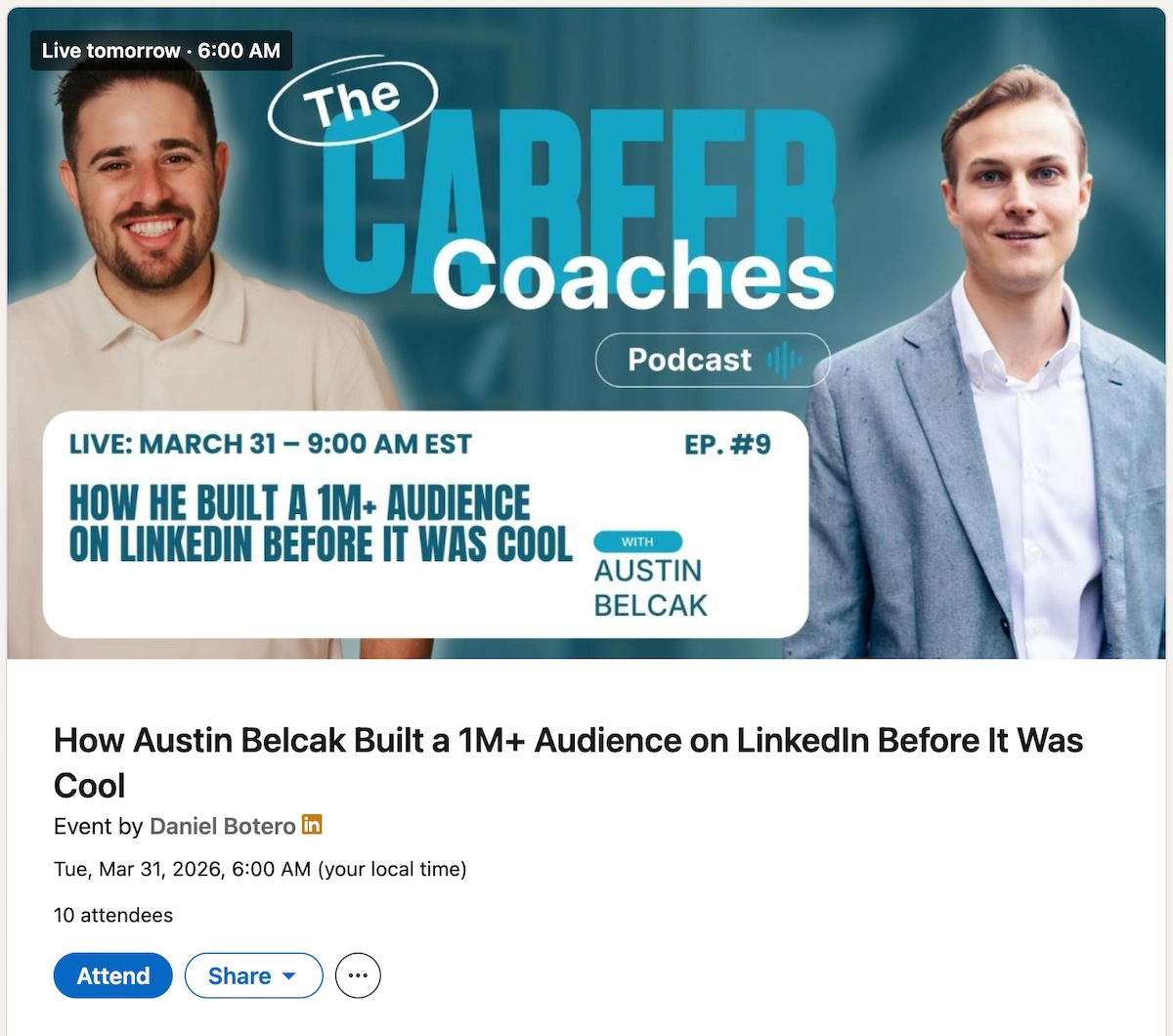
Create a LinkedIn Event, select it as your stream destination in your broadcasting tool, and you get the best of both: registered attendees get notified when you go live, and anyone else can still find and join the stream. You can also hook up your YouTube page so that the livestream also goes to your brand account, there, too. Prefer to edit first? Just record it with StreamYard, auto-edit with an AI video editor, and publish it to your YouTube Brand Account via DemandBird.
Benefits of LinkedIn Live
LinkedIn's audience responds to live video differently than pre-recorded content. A few specific advantages:
- Real-time engagement: Attendees can comment and ask questions during the session. Responding live builds a level of trust and connection that edited posts cannot replicate.
- Broader reach: When you go live, LinkedIn notifies a portion of your followers and your profile or page appears in the live section of the feed. You are not just reaching people who would have seen a regular post.
- Authenticity: People see a side of you that edited posts can't convey. On a platform where overly polished content gets scrolled past, that unguarded quality actually works in your favor.
- Repurposable content: After the session, the recording stays on your profile or page. You can also download it and cut it into clips, articles, or short-form posts.
Requirements to Go Live on LinkedIn
LinkedIn Live is open to anyone who meets the following criteria. There is no formal application process: once you qualify, access is available automatically when you create an event.
- At least 150 followers or connections on your profile or page
- A history of following LinkedIn's Professional Community Policies (no recent violations)
- An account that is at least 30 days old
- You must be located in a region where LinkedIn Live is available (currently unavailable in mainland China)
Both personal profiles and company pages can go live, as long as they individually meet these criteria.
How to Go Live on LinkedIn
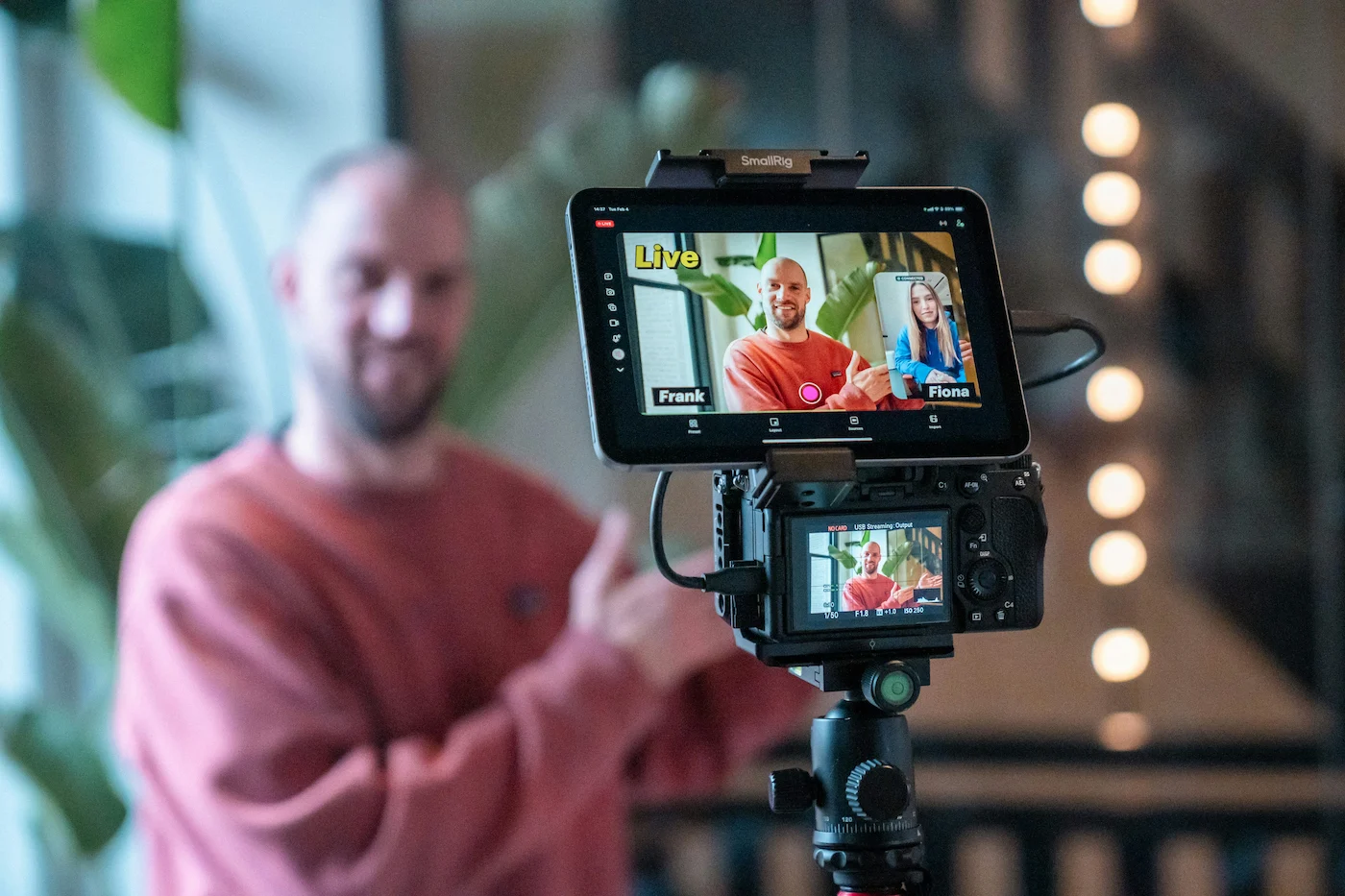
LinkedIn Live doesn't have a native broadcasting interface; you'll need to run your session through a third-party streaming tool. Here is the full process:
- Confirm access: Verify that your profile or page meets the requirements above. If you are unsure, try creating a new event and check whether "LinkedIn Live" appears as an event format option.
- Set up StreamYard: Create a free account at StreamYard, connect your LinkedIn profile or page, and test your camera and microphone before your session.
- Create a LinkedIn Event: On your profile or company page, create a new event. Under event format, select "LinkedIn Live." Choose the event category, set your date and time, and decide whether to allow comments during the stream.
- Connect your stream to the event: In StreamYard, point your broadcast at the LinkedIn event you created, not just your profile or page. Attendees who registered will receive a notification when the stream starts.
- Go live: When you are ready, start the broadcast from StreamYard. LinkedIn will begin distributing the stream to your followers.
- Save and repurpose: After the session ends, the recording is saved automatically on your profile or page. Download it to repurpose clips for future posts.
Best Practices for LinkedIn Live
1. Prepare Your Format and Set Audience Expectations
It's up to you if you want your show to be spontaneous and free-flowing, or more of a presentation. My view is: set expectations accordingly. If you're pitching a value-packed 30 minute workflow webinar, run that. If you tell your audience it'll be a fireside chat AMA, you don't need a script. But do expect to be a little more prepared than usual, regardless: there's something to be said for having an on stage persona! My typical live shows are 20-60 minutes; on long ones, I see dropoff at the 30-40 minute mark. But if it's shorter than 20 minutes, you may not have time for stragglers to join late.
2. Run a Full Technical Check Before You Go Live
Technical problems during a live session are hard to recover from and easy to avoid. Before every session, check your internet connection, webcam, microphone, and backdrop. Run a test stream in StreamYard to make sure everything is working at broadcast quality, not just passable for a video call.
3. Promote the Session Before It Starts
Going live without promoting it first is the most common reason LinkedIn Lives have thin attendance. Treat the event like a product launch: build anticipation in the days before it happens.
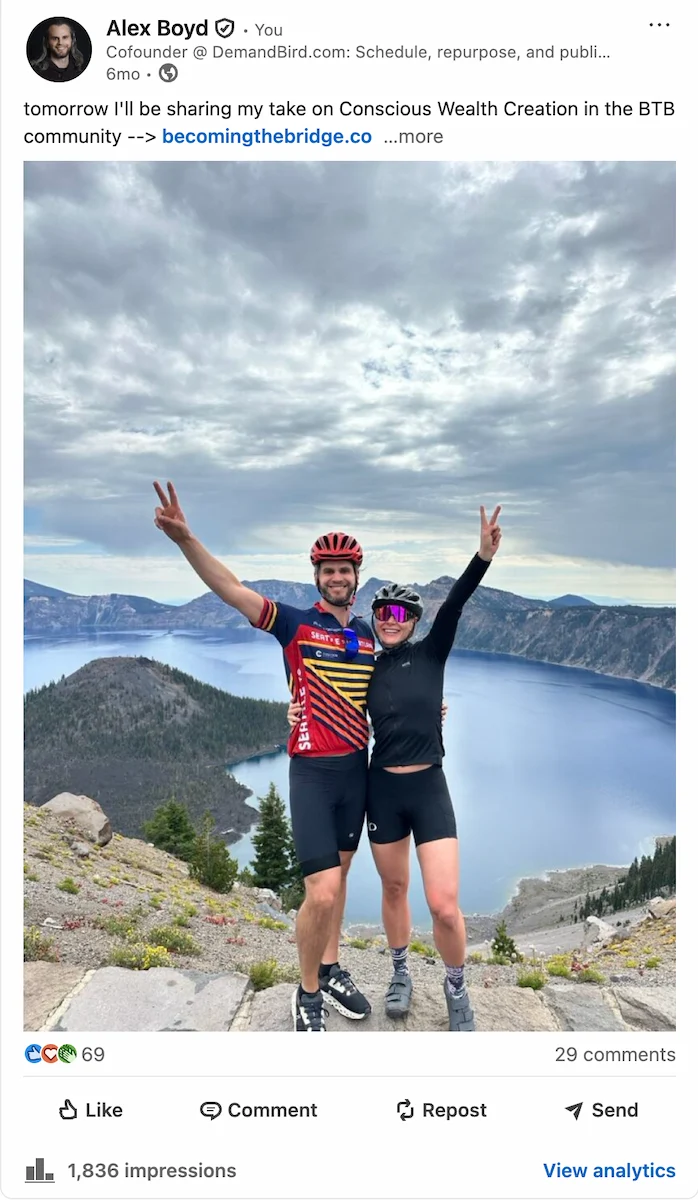
Effective ways to promote a LinkedIn Live session:
- Pre-event posts: Publish on your LinkedIn profile, company page, and relevant LinkedIn groups before the event. Be specific about what attendees will take away.
- Short clips and topic teasers: A brief video or carousel post about the session topic builds interest and drives registrations before the live date.
- Other channels: Share the event link in your email list, on your blog, and anywhere else your audience congregates.
- Guest co-hosts: Bringing in a guest or industry expert puts you in front of their audience alongside your own.
- Direct outreach: Message connections whose work is closely related to the session topic. A short, specific note works better than a broadcast invite.
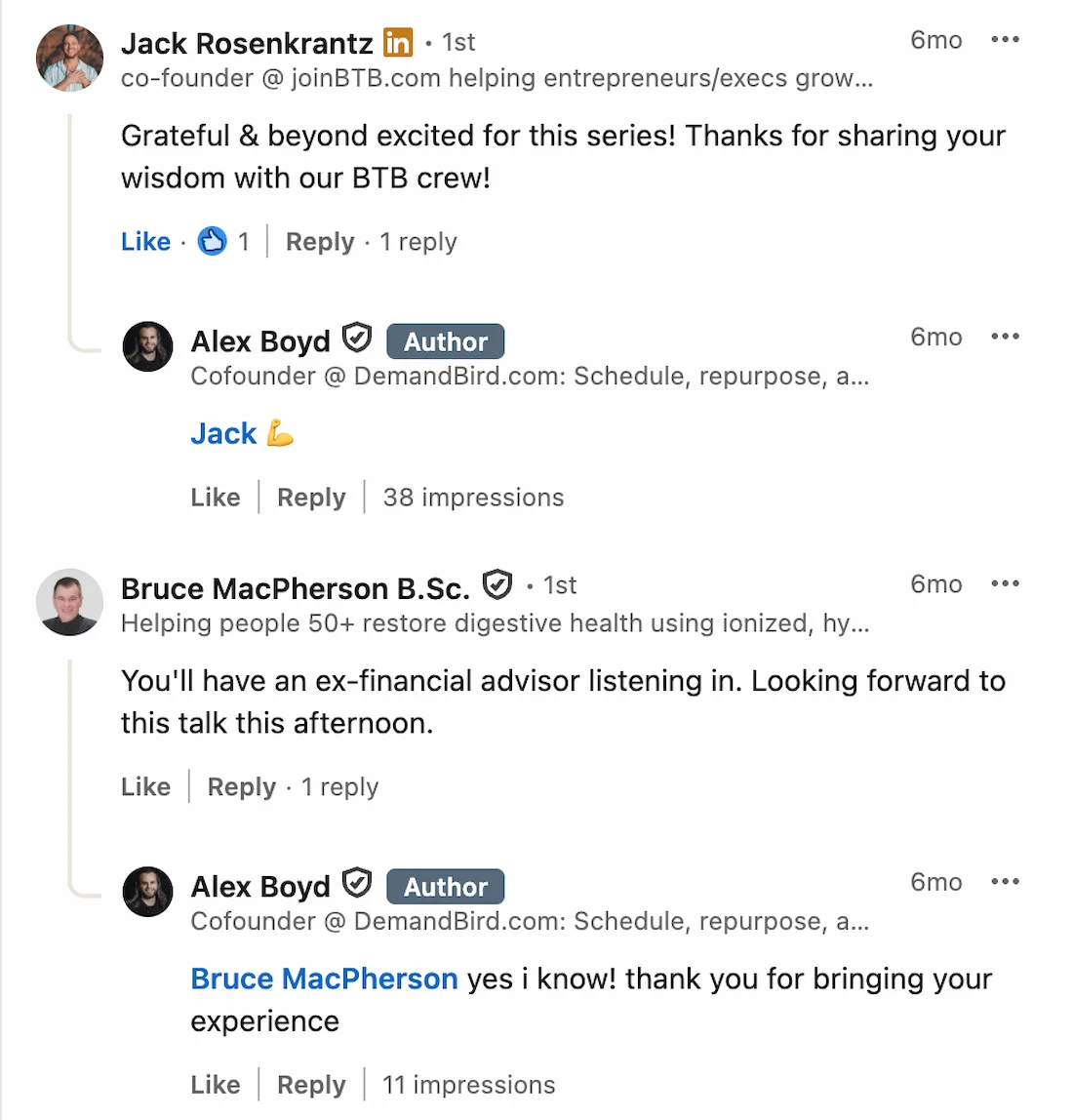
After the session, keep the momentum going. Pull out the sharpest moments as short clips, write a follow-up post summarizing what you covered, and invite attendees to share what resonated with them.
4. Try Different Show Structures
Variety keeps your audience engaged, but if you sense that people are really just digging your "weekly roundup" live shows (or something like that), don't feel the need to reinvent the wheel. Here are a few formats that work well on LinkedIn:
- Solo teaching sessions: Walk through a topic you know deeply. Works best when the subject is timely and practical.
- Expert interviews: Bring in a guest with a complementary perspective. The conversation format is easier to sustain than a solo presentation.
- Live Q&As: Take questions from your audience in real time. High engagement, low prep.
- Panel discussions: Two or three guests debating or analyzing a trend in your industry. Best suited for a slightly larger, established audience.
- Product demos or walkthroughs: Particularly effective for SaaS companies and anyone with a tool or process to show.
5. Review Your Analytics Afterward
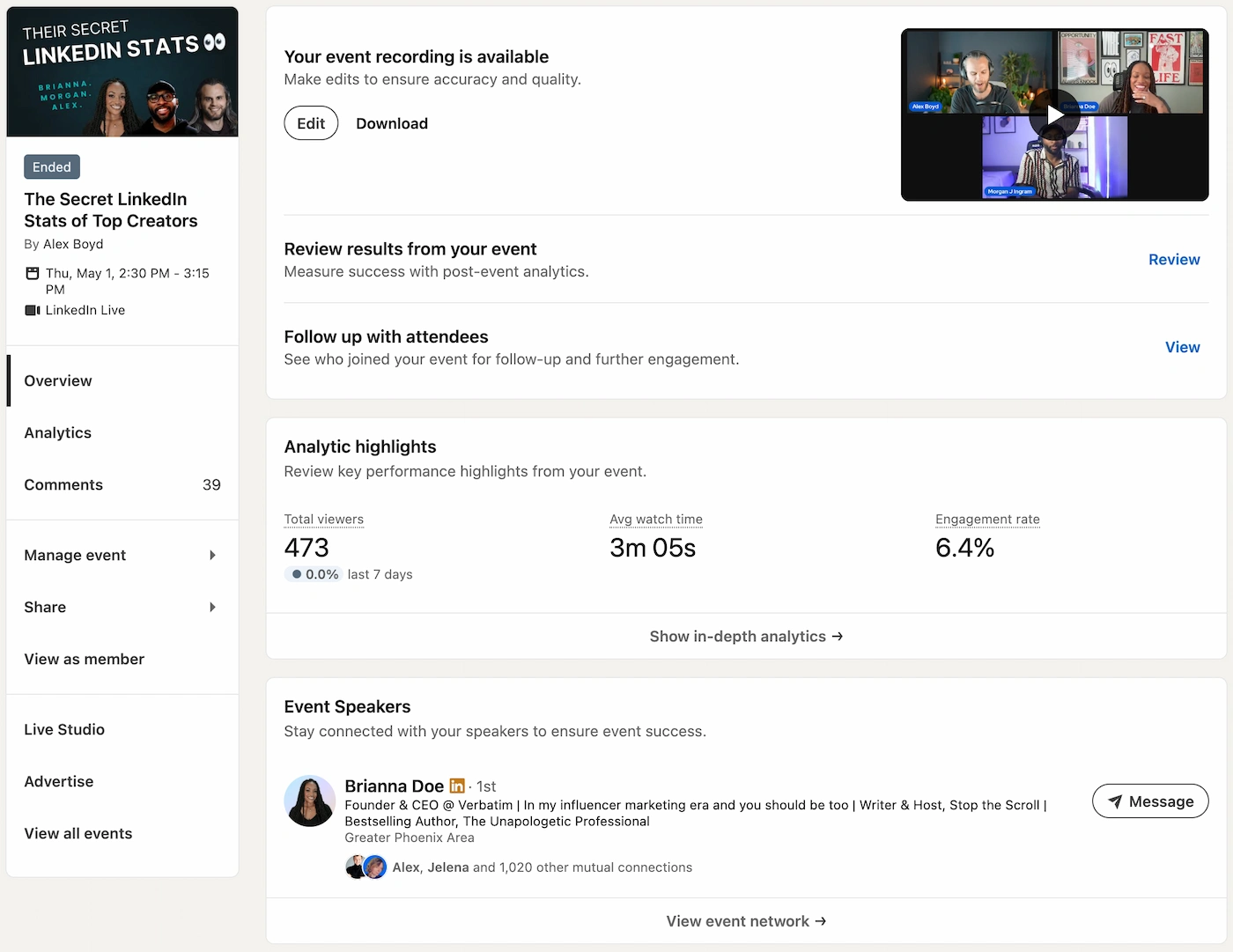
LinkedIn provides post-session analytics for LinkedIn Live, including peak live viewers, total views, watch time, and audience demographics. These metrics tell you which topics resonated, what session length held attention, and who your actual live audience is, not just your follower base.
Use this data to refine each subsequent session. A format that drew strong engagement at 30 minutes is worth repeating. A topic that generated questions you were not prepared for is worth covering more deeply in a follow-up.
For a deeper look at what LinkedIn analytics can and cannot tell you, see our guide to LinkedIn analytics: paid vs. free.
Frequently Asked Questions
What are the requirements for LinkedIn Live?
To access LinkedIn Live, your profile or page needs at least 150 followers or connections, a history of following LinkedIn's Professional Community Policies, and an account that is at least 30 days old. LinkedIn Live is not available in mainland China. No formal application is required: once you meet these criteria, access is granted automatically when you create a LinkedIn event and select LinkedIn Live as the format.
Is LinkedIn Live free?
LinkedIn Live itself is free to use. However, it requires a third-party streaming tool to broadcast. StreamYard offers a free tier with basic features, and paid plans that unlock branding, custom overlays, and multi-destination streaming.
What is the difference between LinkedIn Live and a LinkedIn Event?
LinkedIn Live is a real-time broadcast that anyone on LinkedIn can discover and watch without registering. A LinkedIn Event is registration-based: only attendees get notified. You can combine both by creating a LinkedIn Event and streaming it live via your broadcasting tool, giving registered attendees a notification when you go live.
How long should a LinkedIn Live be?
Most LinkedIn Live sessions perform best between 20 and 45 minutes. Go live for at least 15 minutes: LinkedIn needs time after the broadcast starts to notify your followers, so short sessions often end before most of your potential audience even knows you went live.
What streaming software works best with LinkedIn Live?
StreamYard is the most widely used tool for LinkedIn Live and is straightforward to set up for first-timers. It supports branded overlays, on-screen guests, lower-thirds, and direct streaming to LinkedIn pages and personal profiles. Other options include Restream, Riverside, and Zoom.
Plan Your LinkedIn Live Strategy
Schedule the posts that promote your sessions, follow up afterward, and keep your LinkedIn presence consistent in between.
Start Free Trial