Overview
DemandBird's review workflow lets you ask one or more teammates to approve a draft before it goes out. It's designed for teams who need a second pair of eyes: agencies, ghostwriters drafting for a client, compliance-sensitive companies, or anyone who wants to pause before hitting publish.
A post with pending required reviews can't be published until every required reviewer has approved.
Required vs. optional reviewers
| Type | Behaviour |
|---|---|
| Required | Blocks publishing. The post cannot go live until every required reviewer has approved. If even one required reviewer hasn't approved, publishing is held. |
| Optional | FYI only. Optional reviewers are notified and can approve or comment, but they do not block the post from being published. |
Use required for the people who have to sign off. Use optional for teammates you want to loop in but don't want to gate the post on (e.g. “let me know if you spot something off”).
Teammates first, then clients
Review happens in two stages. Teammates review first. Clients are emailed only after every required teammate has approved, so a client never sees a post the team hasn't signed off.
If a post has no required teammate reviewer, clients are asked right away.
Request a review in the app
- Save the post as a draftWrite your post in the composer and save it. A review can only be requested on an existing draft.
- Open the Reviews panelIn the draft, open the Reviews panel and click Request review.
- Pick reviewersChoose one or more teammates from your account. For each reviewer, mark them as required or optional.
- Add a note (optional)A short message goes out in the review email, e.g. “Quick eyes on the hook?”
- SendReviewers get notified by email with a link to approve or leave a comment.
What reviewers see
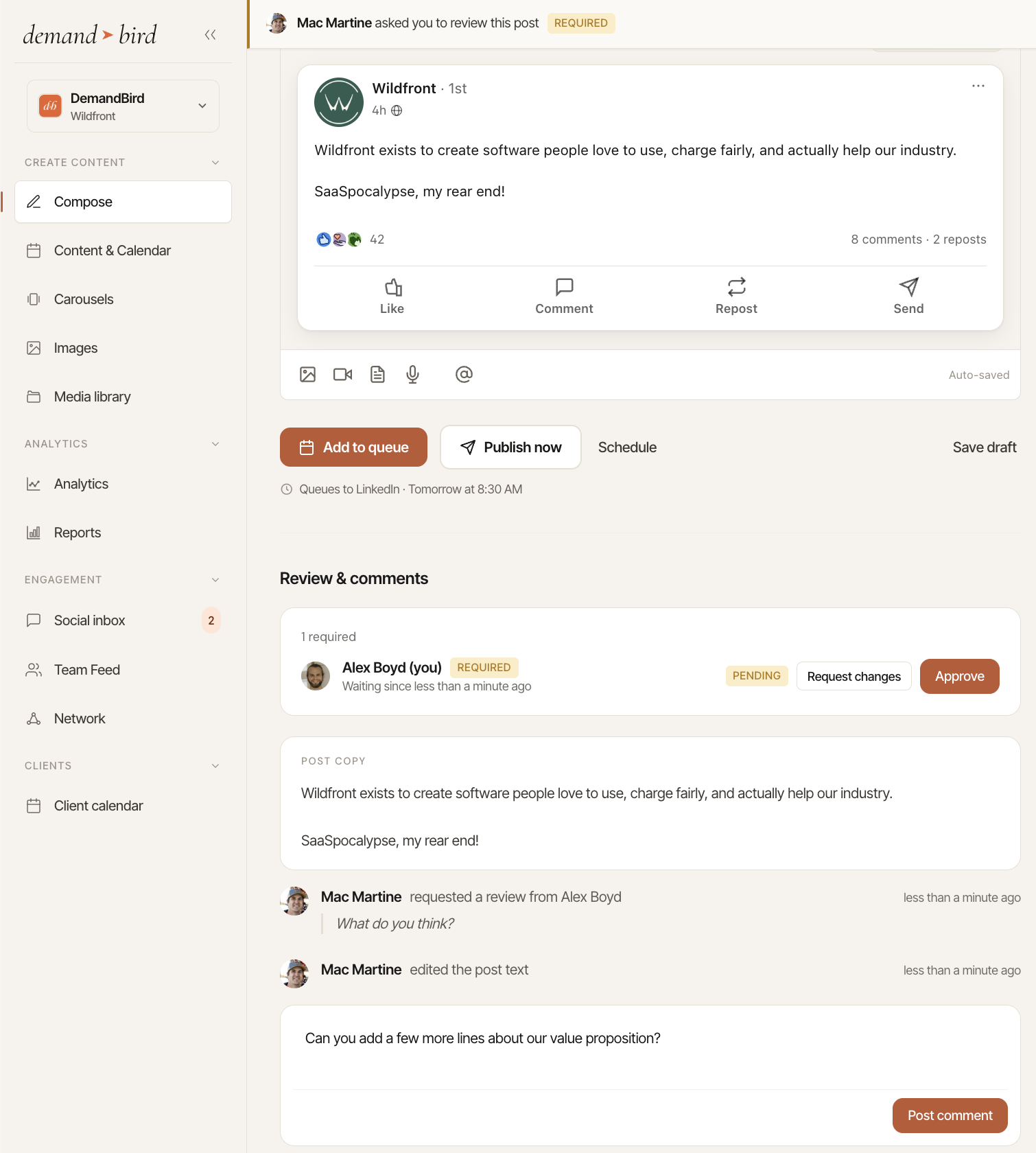
When you're asked to review a post, you'll get an email with a preview of the post and a link to open it in DemandBird.
Open the post in Compose and a bar at the top shows your review is pending, with two buttons:
- Approve: marks your review as complete.
- Request changes: asks you what needs to change. The note is required, and the author sees it. If your review is required, the post moves to Revision requested and won't publish until the review is settled.
You can also leave a comment instead, or do nothing. If you're an optional reviewer the post can still publish; if you're required, publishing waits on you.
Point a comment at the exact words or the spot on the graphic you mean: select text in the post preview and choose Add comment, or click an attached image to drop a numbered pin. The highlighted words or the pin show next to the comment.
Approve and schedule in one step
On the approval card on the Approvals page, a seat that can schedule posts also gets a time field:
- Leave it empty and approving sends the post to Drafts for the author to schedule, or keeps the time it already has.
- Enter a time and the button becomes Approve & schedule.
Reviewers can read a post's reference materials (the notes or transcript it was written from) on the approval card. Adding or removing them needs the Create & edit posts permission.
To see everything waiting on you, open Approvals, or use the MCP tool list_posts_awaiting_my_review from Claude.
Who a post is waiting on
A post in review says who it is waiting on and for how long, for example “Waiting on Dana for 3 days · 1 of 2 approved”. The count appears once at least one reviewer has responded. It shows on Drafts cards, in the Queue list, and on the content board. Hover it to see every reviewer and where each one stands.
Editorial stages
Every post has a stage that shows where it is in the workflow. The Stage card in Compose shows the current one.
| Stage | Meaning |
|---|---|
| Needs writing | Planned, not started. |
| Drafting | Being written. |
| Internal review | Waiting on teammates. |
| Ready for client approval | The team approved it; waiting on the client. |
| Revision requested | A reviewer asked for changes. |
| On hold | Parked. It can't publish while it's here. |
| Ready to schedule | Approved and waiting for a publish time. |
| Rejected | Not going out. |
| Done | Finished. |
The Stage control only offers the moves allowed from the current stage. Putting a post On hold needs a reason, which the writer sees.
Scheduled posts with pending approval
You can request a review on a post that's already scheduled (or schedule at the same time as requesting). If the scheduled time arrives but a required reviewer hasn't approved, the post will not publish: it stays held until every required review comes in.
Editing a post after requesting review
If you change a post's content after reviewers have responded, every review that was already decided goes back to pending, and those reviewers are notified that the content changed. An approval given on the old version doesn't carry over to the new one.
If the post has teammate reviewers, it goes back to internal review first, so the team signs off on the new version before the client sees it again.
Request a review via Claude (MCP)
If you use the DemandBird MCP server, you can request reviews from Claude in plain English. Two tools handle the workflow:
request_review: send an existing draft to one or more teammates, marking each as required or optional. Optionally pre-schedule the post (it will auto-publish only if every required reviewer has approved by that time).list_posts_awaiting_my_review: show posts that are waiting on the authenticated user to approve.
See the MCP tool reference for parameter details.