How overrides work
Every member's role sets a default for each capability. An override replaces the default for that one person, and only that person. The role stays what it is: a client with an editing override is still a client everywhere else.
The two halves are sold separately, because they solve different problems:
| What | Plan |
|---|---|
| Assign a role, including the restricted seats | Business and Agency |
| Override individual capabilities on top of a role | Agency |
Where personal accounts go
Workspaces are for brands. Only admins can create them, and it's a one-time setup. That doesn't mean only admins can bring channels in.
Connecting a channel is its own capability, Connect & disconnect channels, and it's on by default for admins and members. A member can connect their own LinkedIn or X profile into any workspace they have access to. They can also change the posting schedule for a channel they connected; admins can change it for any channel.
The setup we recommend for a team: an admin makes one workspace per person for their personal profiles, then gives each person access to the brand workspaces they help with. Everyone posts as themselves from their own workspace and switches over when they post for a brand. More than one workspace needs the Business plan or higher; Pro has one.
Change one person's permissions
- Settings → Team MembersFind the person and open their row.
- Tick or untick capabilitiesThey're grouped: Content, Review, Visibility, Channels & engagement, Workspace, Developer access. Anything you don't touch keeps following the role default.
- SaveIt applies straight away, on their next page load.
Only the boxes you change from the role default are stored as overrides. Everything else keeps following the role, so if you change their role later, those capabilities move with the new role and only your overrides stay put.
Anyone with overrides shows a Custom permissions: row of badges on the Team Members roster, such as “Can Delete posts” or “Can't Delete posts”, so you can spot them without opening each person.
If you run several clients, permissions are set per workspace, so an override you make for one client doesn't follow that person into another.
The full capability list
| Group | Capabilities |
|---|---|
| Content | Create & edit posts · Schedule & publish posts · Delete posts · Use AI generation (Compose) · See all members' posts |
| Review | Approve / reject posts · Required approver (blocks publishing) |
| Visibility | See upcoming scheduled calendar · View analytics / reports · View LinkedIn analytics dashboard |
| Channels & engagement | Connect & disconnect channels · Use the social inbox (Engage) |
| Workspace | Manage voice profiles · Manage tags & topic categories |
| Developer access | Create API tokens & MCP access |
This is a fixed list, not open-ended rules. Each entry maps to something the app actually checks before it lets an action through, which is why it stays short.
Capabilities that come as a pair
Two combinations don't mean anything on their own, so DemandBird links them for you:
- Schedule & publish posts needs Create & edit posts. You can't publish what you can't open.
- Required approver needs Approve / reject posts. You can't be the one blocking publishing without the power to approve.
Ticking the dependent one ticks its prerequisite; unticking a prerequisite unticks the dependent. The same rule is enforced on saves made through the API, not just in the form.
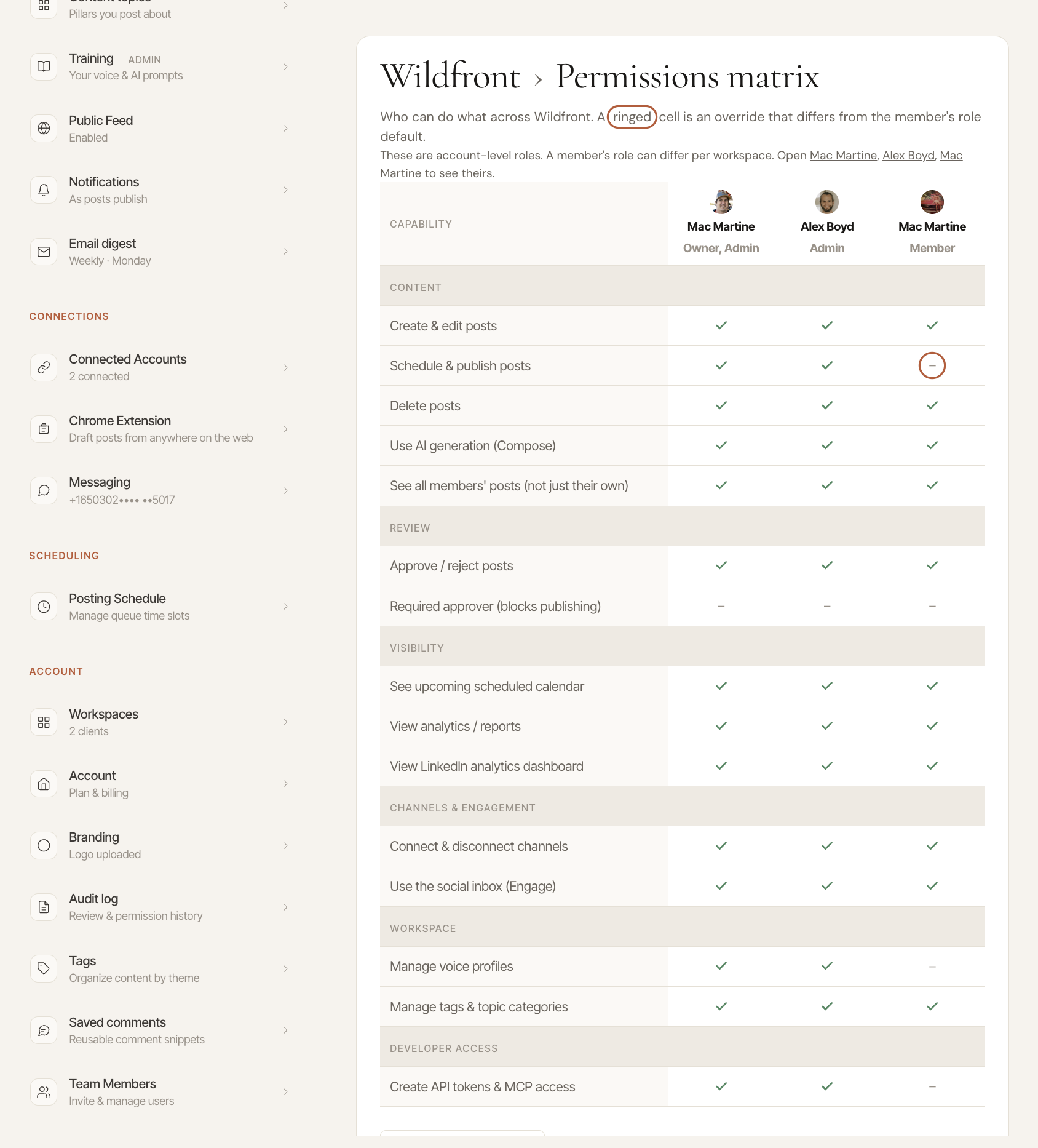
The permissions matrix
Settings → Team Members → Permissions matrix is a read-only grid: one row per capability, one column per person, a tick where they have it. It answers “who can publish?” without opening five member pages.
A ringed cell means that value is an override you set by hand, different from what the role would give. Those are the ones worth auditing before an engagement ends.
What can never be overridden
- Billing and the plan. Admin only, no toggle.
- Inviting, editing and removing members. Admin only, no toggle.
- AI prompt templates. Those are shared across every DemandBird account, so they aren't an account-level permission at all.
If your plan changes
Overrides are enforced when they're set, not when they're read. Moving off the Agency plan removes your ability to change them; it does not silently widen a restricted seat back out to its role default. Existing overrides keep applying exactly as they were.
Below Agency, a member's page lists their stored overrides read-only. To go back to the role defaults, use Clear overrides.