Overview
Content → Board is the Kanban view of your content. The calendar answers “what goes out Thursday?” The board answers a different question: “how much have I actually got, and where is it stuck?”
Columns run left to right, in the order work moves through them. Every column loads at once, so the shape of your pipeline is visible in a glance: a crowded Drafting lane and an empty Scheduled column is a very specific problem, and you can see it without clicking anything.
The columns
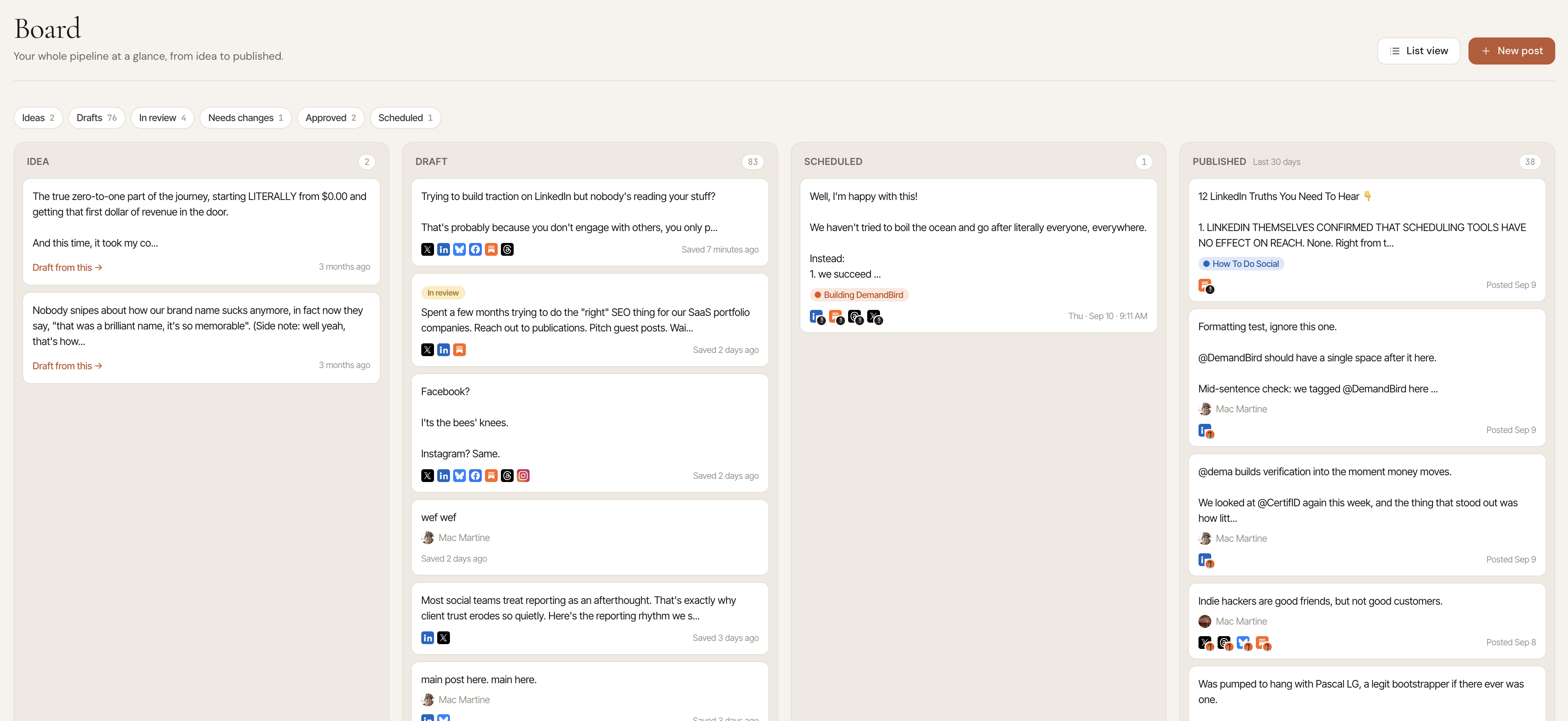
On Business and Agency, the draft part of the board splits into one lane per editorial stage, so you can see where each post is in the workflow:
| Lane | What lands there |
|---|---|
| Idea | Saved ideas that have not become posts yet. Drag one into Drafting and it becomes a draft. |
| Needs writing | Posts that are planned but nobody has started writing. |
| Drafting | Posts being written. |
| Internal review | Posts waiting on teammates to approve them. |
| Client review | Posts waiting on a client. This lane only shows if the account has a client seat, or if a post is already in it. |
| Revision requested | Posts a reviewer sent back with changes to make. |
| Ready to schedule | Approved posts that still need a publish time. |
| Scheduled | Everything booked to go out, soonest first. |
| Published | The last 30 days of posts that went live. Older posts are still there in the list and calendar views; the board keeps a recent window so the column stays readable. |
On Pro, the board has four columns: Idea, a single Draft lane, Scheduled, and Published.
On hold and Rejected are not lanes. Find those posts with the filters on the Content tab. An on-hold post stays in the lane it was in, with an On hold chip on its card. See editorial stages.
The board only accepts moves the workflow allows. If a post can't go straight from one stage to another, that lane won't take the drop.
The pipeline bar
Above the board (and above the Content tabs) a row of counts sums up your pipeline. Each count links to the list of those posts.
| Count | What it counts |
|---|---|
| Ideas | Captured ideas not yet drafted. |
| Drafts | Written, not sent for approval yet. |
| In review | Waiting on a reviewer. |
| Needs changes | A reviewer asked for changes. |
| Approved | Everyone approved. Still needs a publish time. |
| Scheduled | Has a publish time on the calendar. |
Drag to schedule
Drag a card from a draft lane to Scheduled to book it. It goes out on the platforms already selected on the post, so the drag is a scheduling decision only: you are not also picking channels by accident.
You can drop it into your next open queue slot or pick an explicit time. Queue is the right default: it keeps your cadence even without you thinking about it.
Drag back to unschedule
Drag a card from Scheduled back to a draft lane and it comes off the schedule. Nothing is deleted: the post keeps its content, its channel copies, and its media, and simply stops being booked.
This is the move to reach for when you want a post off Thursday. Deleting would take the whole post and every platform version with it, which is almost never what “not this week” means. The same thing is available as an Unschedule action on the post rows in the list view.
Two things cannot be dragged back, and the board does not offer it for them: a post held for approval (pulling it back would throw away the pending review) and a post that is already going out (it is past the point of recall).
Published is not a drop target in either direction. You cannot drag something into being published, and a published post cannot be dragged back into draft.
Reordering your work
Cards in Idea and the draft lanes can be dragged up and down within the column, and the order sticks. Those columns have no natural sort worth defending, so the order is yours: put what you intend to write next at the top.
Cards you have never dragged sort by recency and sit above the ones you have placed, so something brand new never gets buried under an order you set last month. Scheduled sorts by time and Published by when it went out, so neither is hand-orderable.
What a card tells you
- The opening lines of the post, so you can recognise it without opening it.
- Its platform icons. When the workspace has two or more channels on one platform, the icon carries that channel's avatar, and hovering it names the channel. Queue rows, the calendar and post cards show the same thing.
- Its tags, in their colours.
- Its scheduled time, or how long ago it was posted.
- A yellow In review badge when it is waiting on approval, with who it is waiting on underneath, for example “Waiting on Dana for 3 days”.
- A red Needs changes badge when a reviewer asked for changes.
- A green Approved badge when every reviewer approved but the post has no publish time yet.
- An On hold chip when the post is parked.
- The author's name, on posts somebody else wrote.
Click any card to open it in the composer.
Whose posts you see
If your seat can see all members' posts, the board shows every author's posts in the current workspace, with the author named on cards that aren't yours. Ghostwriters see only their own posts. Ideas stay personal: the Idea column only ever shows your own.
Switching workspace switches the board with it, which is what makes it usable for an agency operator working across several clients.
Board vs. calendar
Use the board when you are deciding what to work on: it shows volume and bottlenecks. Use the calendar when you are deciding what goes out when: it shows cadence, gaps, and your tag mix across the week. They are two views of exactly the same posts.